Posts

Building an AWS Lambda through AWS Console and Visual Studio
Image
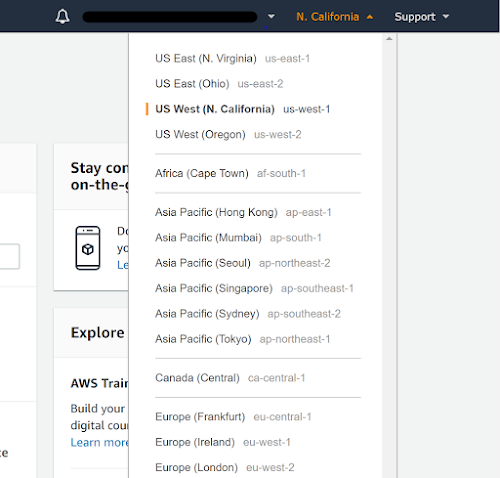
One of the most useful services available in AWS is Lambdas. A Lambda is a serverless app that can be used to run custom code manually, on a set schedule, or when a separate AWS service triggers it. Lambdas are especially useful when you need to schedule actions to run on one of your apps. I will show you how to create the Lambda through the AWS Console and how to build and push the code using Visual Studio. Create an AWS Lambda through AWS Console Creating a Lambda through the AWS Console is very simple. To do this, you first need to login through the AWS website (you can create a free account for development purposes). Once you have logged in, make sure you are in the region that you want the Lambda to run in (it is possible to have a Lambda access services in a different region, but that is beyond the scope of this tutorial). Once you are in the desired region, select Lambda in the list of services. Here is where your Lambdas in the selected region will appear. Click Create functi...
A Basic Intro Into Making React Components

Image
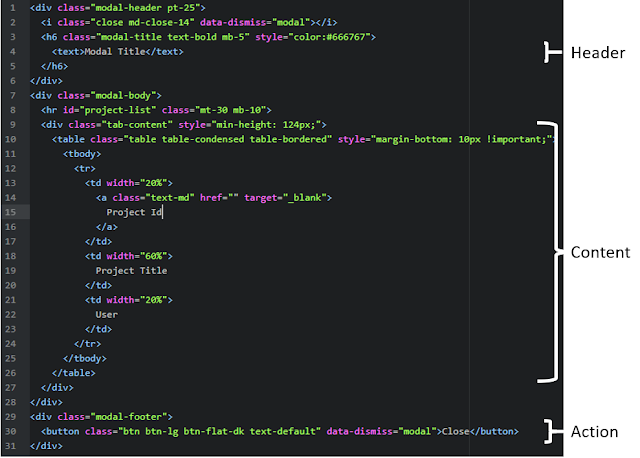
We have all been there; we are developing a page that is like another, so we copy an entire section of code from another page to add to our new page. This works, but now we just added another 500 lines of html to our already 1500-line page. Since we are the ones who wrote the page it makes sense to us, but to others it is impossible to find what sections need to be changed when a bug is found. Even worse, if the bug exists in the copied code it needs to be fixed in the source and all copied locations. This is a nightmare when it comes to long term maintenance of a site. A component reduces redundant code and simplifies pages into small, easy to understand chunks that can be modified easily. Transitioning to components is somewhat easy but takes some practice to see when something should be broken into a new component. Generally, components should be dumb and not contain too much data interaction. They should take in data to display and execute functions on the parent to mutate data. ...

Setting Up IntelliJ Run/Debug Configurations

Image
  IntelliJ is a powerful integrated development environment that supports many languages and supports multiple module applications. When starting out, the configuration page may seem daunting because configurations may not auto populate. In this example we will be setting up the build for a Vue application; but the process is the same for any JavaScript framework using a node express server. To get it started, click the + button to add a new configuration. From the list select the framework you are using for your application. Depending on your selection, some defaults will be provided. For example, when npm is selected it will search for a package.json in your directory and set the command. This is the basics to get your applications started, but we can take this a little bit further. In a typical team environment, the package.json is getting updated as team members are adding dependencies for the code. We can use the Before launch section to make sure everything is updated bef...

Demystifying User Secrets in .Net Core

Image
User Secrets are a convenient way to store local configuration values in your .Net Core applications. When you create a new .Net Core application, a usersecrets.json file will be automatically created for you to store your local config values. You can manage the values inside your solution by opening up the json file through the web project context menu. Inside this file, you will see an empty object by default. You can copy over your entire appsettings.json or specific sections and modify them as you see fit for local use. When you run the solution, the config values in usersecrets.json will merge with appsettings.json and overwrite any values that match. If you want to see where the file is located, right-click the open tab in VS and click "Open Containing Folder". This will take you to your local AppData > Roaming directory. If you back out of this directory, you will see folders for all of your apps and you will notice that MS uses g...

CQRS db Contexts with .NET Core

We're developing a new app using .NET Core 2.2 and it's time for some redesign. When it came to EF db Contexts we wanted to separate our Reads from our Writes (a la CQRS) more explicitly. We needed to work with the same entities in both BUT we still wanted to optimize performance with Reads and customize Writes separately so below is a quick and easy implementation. Base Context Setup a Base Context class that you will inherit from; you can either inherit from DbContext or in this case IdentityDbContext since we're also leveraging Identity Core. public abstract class BaseContext <TContext> : IdentityDbContext<User> where TContext : DbContext { protected BaseContext (DbContextOptions<TContext> options) : base (options) { } protected override void OnModelCreating (ModelBuilder modelBuilder) { base .OnModelCreating(modelBuilder); } // TODO add DbSet<> for each entity/table (as needed) public DbSet<Audit> Audit { get ; s...

Update: Single connection string for Multiple Developers

Image
https://dcdevs.blogspot.com/2017/06/single-connection-string-for-multiple.html If you have implemented the trick above, you may have noticed it has stopped working when you moved to a .NET Core project. This is because the DB connection alias is achieved via registry keys which is a Windows-specific behavior. .NET Core supports cross platform development, so Microsoft elected not to implement this Windows-only feature. However, .NET Core provides a new way to manage such configurations across developers - user secrets. In Visual Studio, right click on the project that contains your appsettings.json file and navigate to manage user secrets. User secrets are machine only - Visual Studio will not try to check them in to source control. Here, you can mimic the structure of your appsettings.json to overwrite any configuration setting - not just the connection string! Any values you define here will overwrite the corresponding appsettings.json value (hierarchy must match). ...

User Registration with CAC/Client Certificates in Asp.Net made easy - PART I

Implementing CAC registration in Asp.Net web applications is fairly vague and mystified. Quite frankly, there just isn't a lot of literature on this topic, and what is out there tends to be rather old and not very comprehensive. That said, I'd like to share a way to implement a CAC registration in your Asp.Net web applications. Note, this article is only going to cover things from the .Net Application perspective. For more info on setting up CAC/Client Certs in general, view our other articles. https://dcdevs.blogspot.com/2017/06/iis-express-client-certificates.html https://dcdevs.blogspot.com/2017/06/aspnet-mvc-how-to-enabledisable_19.html The first thing to do is to create a class that can take in a ClientCertificate, validate it, and parse out the information needed to create an account. Here is an example of a CertificateManager class that can be used in your app. public class CertificateManager { public Boolean HasCertificate { get; } pub...

Getting Identity Claims to update immediately

Image
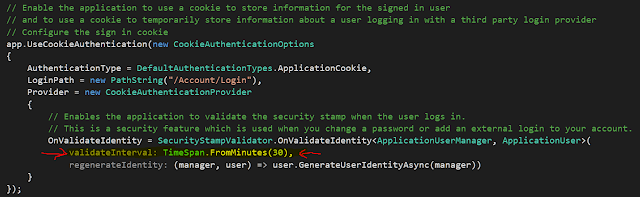
Asp.Net Identity Claims are a very useful feature for adding extra metadata to a user's account. This metadata could consist of a user's organization, affiliation, or even profile settings that they can set through the app. In the latter case of having claims values that can be updated dynamically, you will want to have the changes to these values reflected as soon as possible to avoid potential UX issues. By default, claims are refreshed when a user logs into the app. In the case of users who stay logged in for prolonged periods, we want to have control over the interval for when the claims cookie gets refreshed from the database. The default interval that Identity sets for you is not ideal for dynamically updated claims values. It is located in Startup.Auth.cs (assuming this is standard .Net MVC project). As you can see in the screen above, the default is set to 30 min. To configure claims values to update more quickly, just change the Timespan to something like....

Stop Visual Studio from Eating Disk Space

Image
If you you Visual Studio and NuGet, chances are that you have been affected by this issue! Navigate to \Users\{Your username}\AppData\Local\Temp\NuGetScratch and check the size of the folder. In my case, I had 40GB  of temporary files that have never been cleaned up. Now in Visual Studio, navigate to Tools > NuGet Package Manager > Package Manager Settings In the dialog box, click Clear All NuGet Cache(s). This will empty out several temporary folders, including the previously mentioned NuGetScratch which is the worst offender. Note that this operation may take some time and Visual Studio may be unresponsive while the operation completes. Thanks for reading!

Web Config Transformations

Web config transformations allow for developers to cut down on duplicated XML in configuration files by providing a way to change only the non-static values for the appropriate environment. A value that would be expected to change between environments is something like a connection string, whereas library versions would remain the same for any deployment of an application. Transformations can be tricky: often times developers do not have the required access to view the transformed version of the file on a production environment. The best way to configure your transformations is to use a site like the one below which uses the same transformation functions as the build and shows you the output. https://webconfigtransformationtester.apphb.com/ https://msdn.microsoft.com/en-us/library/dd465326(v=vs.110).aspx The second link above is to Microsoft's documentation of the possible transforms. The key takeaway from this reference is the purpose of Transform and Locator . Transform  ...

Clean up your LINQ with Load Expressions

Often times in an application, you will need data from across several tables. One approach to get all this data at once is to use the LINQ .Include() function, which will pull in all the data of the specified parent or child table. However, this can often be too heavy, as you may not need every column so you end up pulling more data from the database than is required. When this is the case, the best practice is to use a Data Transfer Object or DTO which is one flat object that combines properties from parents and children. Below, I demonstrate a simple use of a DTO, using . Include() var products = Uow.Context.Products.Include(x => x.ParentTable).Include(x => x.ChildTable).ToList(); var dtoList = new List<ProductDto>(); foreach ( var product in products) { var dto = new ProductDto{ // Copy over properties ... // Copy over parent properties ... // Copy over child properties ... }; dtoList.Add(dto); } As I mentioned before, this i...

Scheduling Tasks With Azure Scheduler

Image
In many applications it is necessary to send email notifications on a schedule. There are many ways to achieve this functionality: using a Windows service,  Windows Task Scheduler, or a number of other third party solutions. In our case, we don't have much control over our web server and so we decided against a Windows service. We ended up going with Azure Scheduler which provides a reliable way to hit a network endpoint on a user defined schedule. While not a free solution in most cases, the cost is low for the majority of small applications. Here's how to set up Azure Scheduler: Open the Azure portal and open the Scheduler Job Collections blade. This can be accessed by searching for scheduler in the top search bar in the Azure portal. Click Add in the top left corner. Name the job. The name can only have alphanumeric characters, hyphens, and underscores. Select or create a new job collection.  If creating a new job collection, select your...

Git good with Git

There will come a time in every developers life where they will have to learn how to use more than one version control software. Here are some steps to set up a Git repository. STEP 1  - Download the latest version of  Git here . STEP 2  - Open your terminal on your local machine. STEP 3  - You will need to tell Git who you are so that all your commits are labeled properly git config --global user.name "YOUR NAME HERE" And your email address: git config --global user.email "YOUR EMAIL ADDRESS HERE"   STEP 4  - Initiate your local repo: cd <directory you want to use git on> git init Finally you can clone your repo: git clone ssh://milo@example.com/path/to/my-project.git cd my-project STEP 5  - Get to work! The code won't write itself!

Software Versioning and You

It's hard to image that after developing for so long that there was a time that I didn't use any type of software versioning software. Yes, you heard me right, there was a time that I would simply edit some code and upload it to a live environment without a way to track any changes. Versioning software like Subversion allows you to keep track of changes to your code in case. Below you will find steps to set up a svn (Subversion) repository on a host machine and locally. STEP 1  -    Insure your host machine has svn install. Just log into the machine and punch in: which svn Your output should look something like this: :~$ which svn /usr/bin/svn If your some reason you don't have svn installed on your host,  here  is where you can get started. STEP 2  -  Now that you have svn installed on your host you can create a repository. Here is the command for that: svnadmin create (PATH TO YOU REPO HERE eg. /users/svnuser/myrepo) STEP 3  ...

HighCharts Tech Tip

Image
So you have a website with tons of data but don’t have a visualization solution. HighCharts is a purely JavaScript based chart solution that may be the answer to your searching. It is compatible with all modern browsers. If you need a solution for school or your non-profit organization HighCharts is free to use. It offers line, spline, area, area spline, column, bar, pie, scatter, angular gauges, area range, area spline range, column range and polar chart types. Many of which can also be combined. It allows for multiple axes, tooltip point labels, export and print, and zooming. HighChart can have data supplied statically or dynamically through ajax. The GSA Carbon Footprint tool uses the Highcharts library to visualize carbon emissions data.  The General Services Administration (GSA) developed the GSA Carbon Footprint Tool to help Federal Agencies calculate, report, and reduce their greenhouse gas (GHG) emissions as specified under Executive Order (EO) 13514.  https://www.car...

Create your own Short URLs

URLs for deeply nested pages can be difficult to read and even harder to remember, especially for new visitors to a website. When giving a presentation or participating in a technical conference, website owners tend to put shortened URLs on their slides so that the audience can write down the link on a piece of paper or navigate on their phone. Many URL shortening sites have caught on and you can find many examples with a quick search. But, these URLs are most often a string of random characters that do not have much meaning. What if we wanted them to be more memorable? Creating Your own Short URLs Lets say you have the following URL which is for a page that has information about the event at which you are presenting. www.mywebsite.com/events/northamerica/2017/july/exampleconference    As you can see from the structure of the URL, the page for this conference is nested within some hierarchy that is related to the organization of the site. Yet, this URL may be difficult...

Smart Relative date formatting in C# using extension methods.

The C# DateTime object has some nice .ToString() overloads for formatting dates but sometimes we would like a friendly, relative format like what you see in many Android or iPhone apps. The idea is to only include year, month, and day when they are not the current one. Examples are as follows... Just now         55 seconds ago 1 min ago 15 mins ago 1 hour ago 13 hours ago Sunday, 25th at 12:53 PM              -  different day, same month Tuesday, May 2nd at 12:53 PM     -  difference month, same year May 2nd, 2016 at 12:53 PM          - different year I like this format because it's flexible enough to give you a nice relative format that scales well with dates far in the past. To implement, I used an extension method. Since I am using ordinals for the days, I used another extension that I found in a Stack Overflow post . The Humanizr library accomplishes ordinals very well...

Copying Azure Blob Storage Containers Between Accounts With PowerShell and AzCopy

A few months ago I wrote about backing up and restoring Azure blobs from a local environment. You can read that post  here . This is not an efficient approach for moving blobs from one Azure storage account to another. In this post I will show you how to copy all containers from one account to another using PowerShell and how to copy individual Azure storage containers using AzCopy. Copying All Containers with PowerShell This script will copy all containers from one Azure storage account to another. This can be useful for populating Azure development accounts. First we will set up our Azure storage accounts and create a storage context for each: $SourceAzureAccountName = "SourceAzureAccount" $SourceAzureKey = "SourceAzureKey" $DestAzureAccountName = "DestAzureAccount" $DestAzureKey = "DestAzureKey" $SourceCtx = New-AzureStorageContext $SourceAzureAccountName -StorageAccountKey $SourceAzureKey $DestCtx = New-AzureStorageContext $DestAzur...